Skip to content

Storing the whole docs site and its tools on a device, so they open with the network off

When the network drops, the page you most want to open is often the one that will not open. On a flight, in the mountains, in a new country before you have found a SIM, that is an inconvenience. Where the network is cut, throttled or blocked, the same thing costs something else entirely.

From 4 to 6 September we were at Global Gathering 2026 in Estoril, Portugal. Alongside our booth on the last day we joined the Circles, where we talked about how the privacy material on the docs site is written and how it is layered. The conversation kept returning to one premise: the moment a reader needs these pages is not reliably a moment with a working connection.
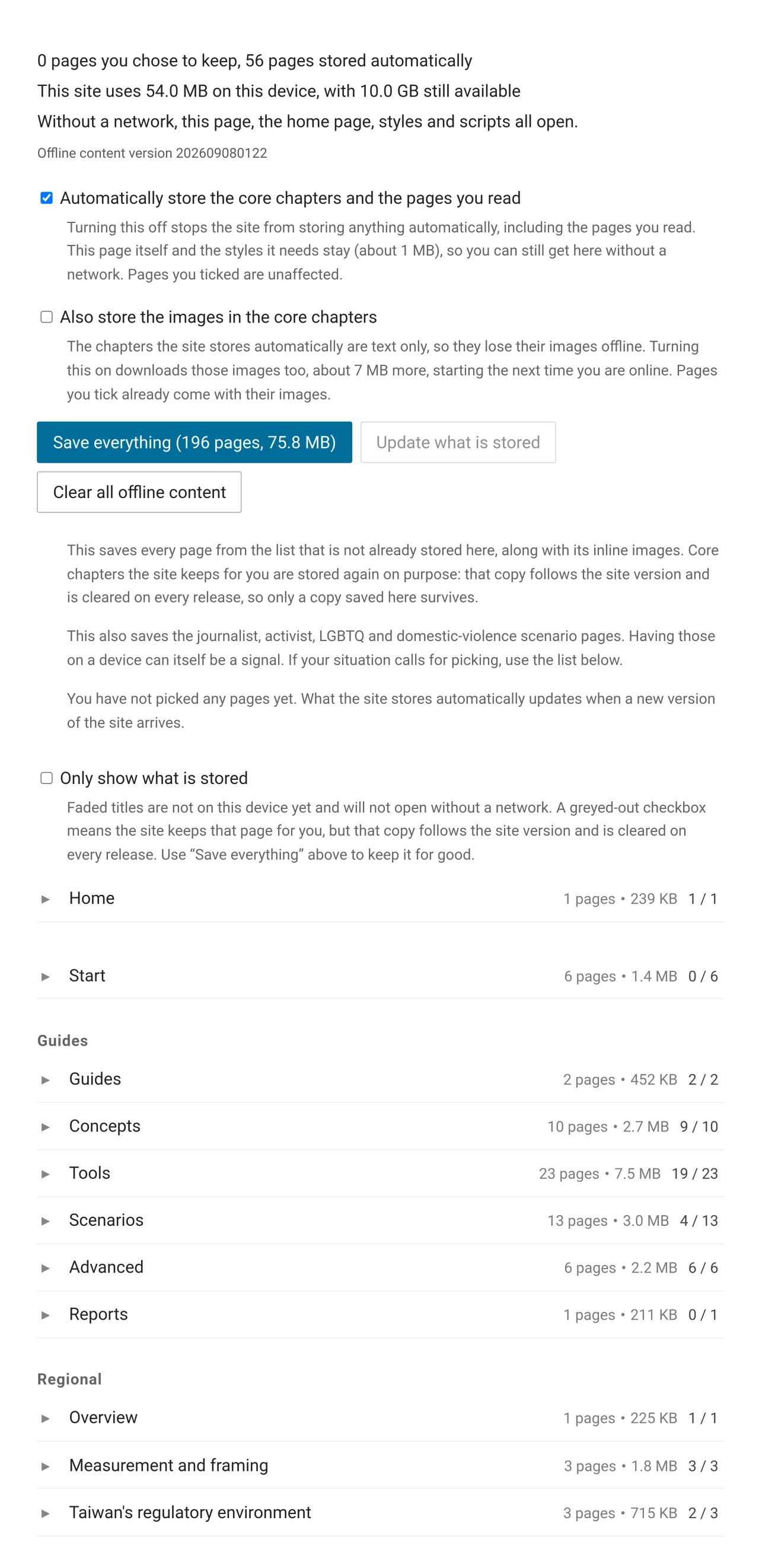
The top of the offline reading page: storage totals, the automatic-storage and inline-image switches, and the Save everything, Update what is stored and Clear all offline content buttons

What we heard at Global Gathering

The responses were almost entirely positive. War, government interference and uneven distribution of network resources are three different situations that arrive at one result: when you need to look something up, the thing you need is on the other side of a network you cannot cross.

Offline reading already had a section in the tools post at the end of August, where we treated it as a convenience for travellers. What we heard is why it moved to the main line of work, and everything added since has been built around it.

The first half below describes what a reader actually sees. The second half covers how it works, and skipping it costs you nothing in use.

Pages are stored as you read them

Opening the docs site in an ordinary browser stores only the offline reading page and the styles it needs, about 1 MB, so there is somewhere to land with the network off.

The core chapters for that language follow in the background once you pick a reading language on the home page or open a second page in the same language: roughly 12 MB of text covering concepts, tools, advanced and regional, plus the four utilities that get used during an outage, currently 56 pages in English. The extra step is deliberate, so that someone who reads one page and leaves never spends 12 MB of mobile data.

Only the language you switch to gets downloaded, so a device ends up holding only the languages actually read. Pages visited afterwards are stored too, under the switch on the offline reading page.

Scenario pages for journalists, activists, LGBTQ readers and domestic abuse are excluded from that prefetch and only stored if a reader opens one. Their presence on a device is itself a signal, so keeping them is the reader's decision.
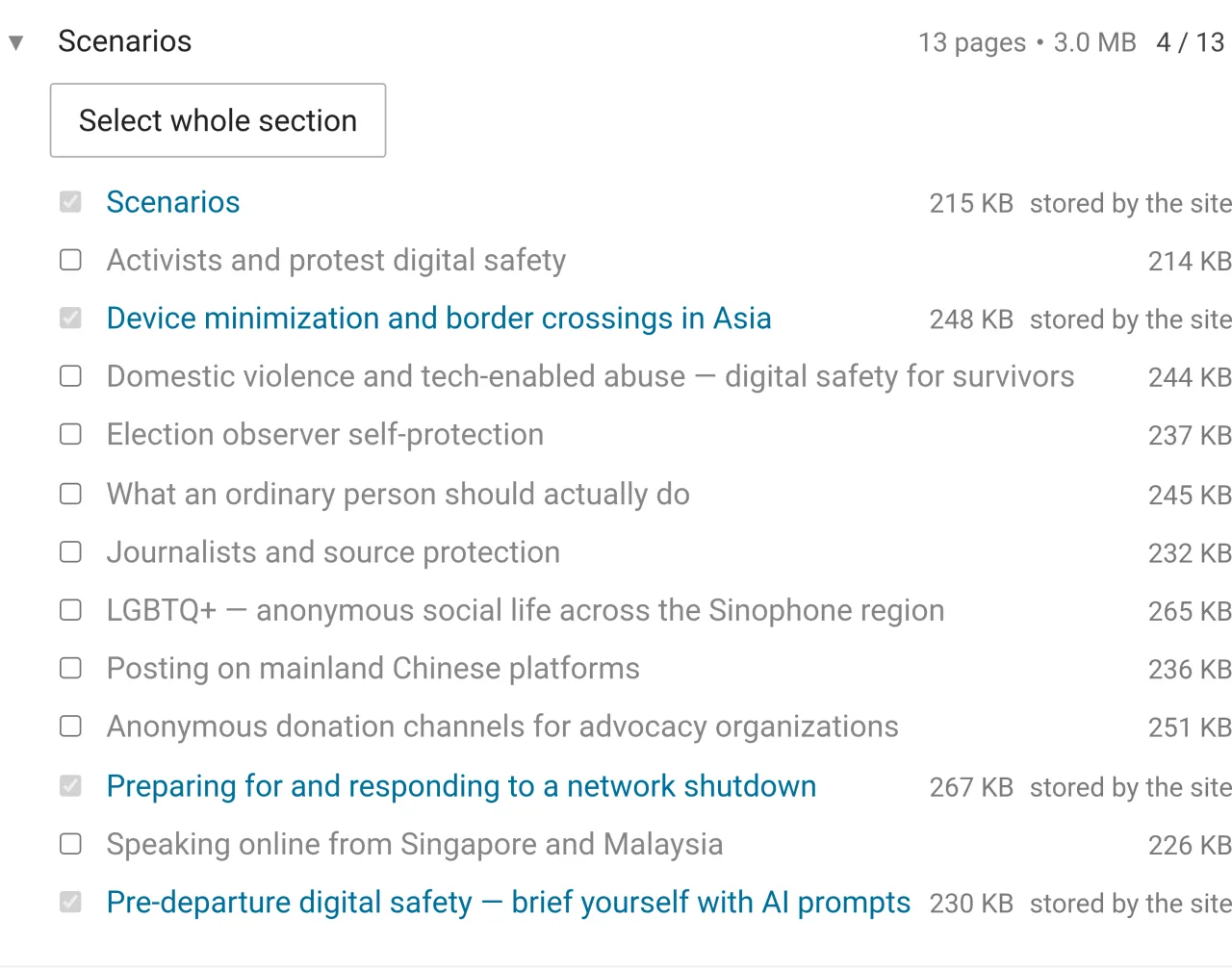
The offline reading page with the Scenarios chapter expanded, listing 13 pages, four of them greyed out and marked as already stored by the site, while the journalist, domestic abuse and LGBTQ pages sit unticked for the reader to choose

One button before a flight

The Save everything button on the offline reading page stores every page in the current language, 196 pages in English at the time of the screenshot, which covers a flight, a train, or any stretch of a journey without coverage.

What that button stores survives a site release, while the chapters the site stores automatically are cleared and re-downloaded on each release. It handles one language at a time, so carrying all three means pressing it once on each language's offline reading page.

The automatically stored chapters are text only and lose their images offline. A separate option downloads the inline images of the core chapters as well, about 7 MB more, and it is off by default because most readers are on mobile data. Pages a reader ticks individually always come with their images.

To carry only part of the site, expand a chapter, tick pages, and apply the change. Start from who you are also has a one-press button that stores every page along that reading path.

One button before a border

Clear all offline content on the same page removes what the site stored and what the reader picked, and switches automatic storage off, so pages read afterwards no longer stay on the device. Turning the switch back on restores the behaviour.

That button exists for a reason as concrete as the one above it. When a device may be inspected, a complete anonymity and privacy guide sitting on it is something you have to explain.

The offline reading page itself and the styles it needs are outside the switch and come back the next time you are online, about 1 MB. They stay because the moment you want to clear a device, or check what is still readable, is often the moment you have no connection, and without that page all that is left is the browser error screen.

No installation, which matters more than it sounds

The utilities section currently holds fourteen tools: a threat model checklist, a passphrase and password generator, local file encryption, a passkey page, a preparation checklist, QR code generation, reading and frame streaming, file hash comparison, a file metadata stripper, screenshot redaction, a URL cleaner, an invisible character detector, and a page listing what a browser gives away.

Each tool's code and data are stored alongside the page that carries it and keep working with the network off. The QR code generator, reader and frame streamer plus the passphrase generator are prefetched with the core chapters, because they get used during an outage. The rest are ticked individually on the offline reading page.

Skipping installation removes constraints that are otherwise hard to work around. A borrowed laptop, a public machine or an organisation-managed device that forbids new software all work without asking anyone for permission. Windows, macOS, Linux, Android and iOS behave the same, as long as there is a browser. Nothing new appears in the device's app list, and one more privacy app in that list is itself a signal. Nor does anyone end up carrying a three-year-old copy with a fixed problem still in it.

A tool that keeps working with the network off is also evidence that it is not sending anything out. To check for yourself, the developer tools in any browser have a network tab that lists every request a page makes. Run one piece of data through any tool and watch whether that list moves.
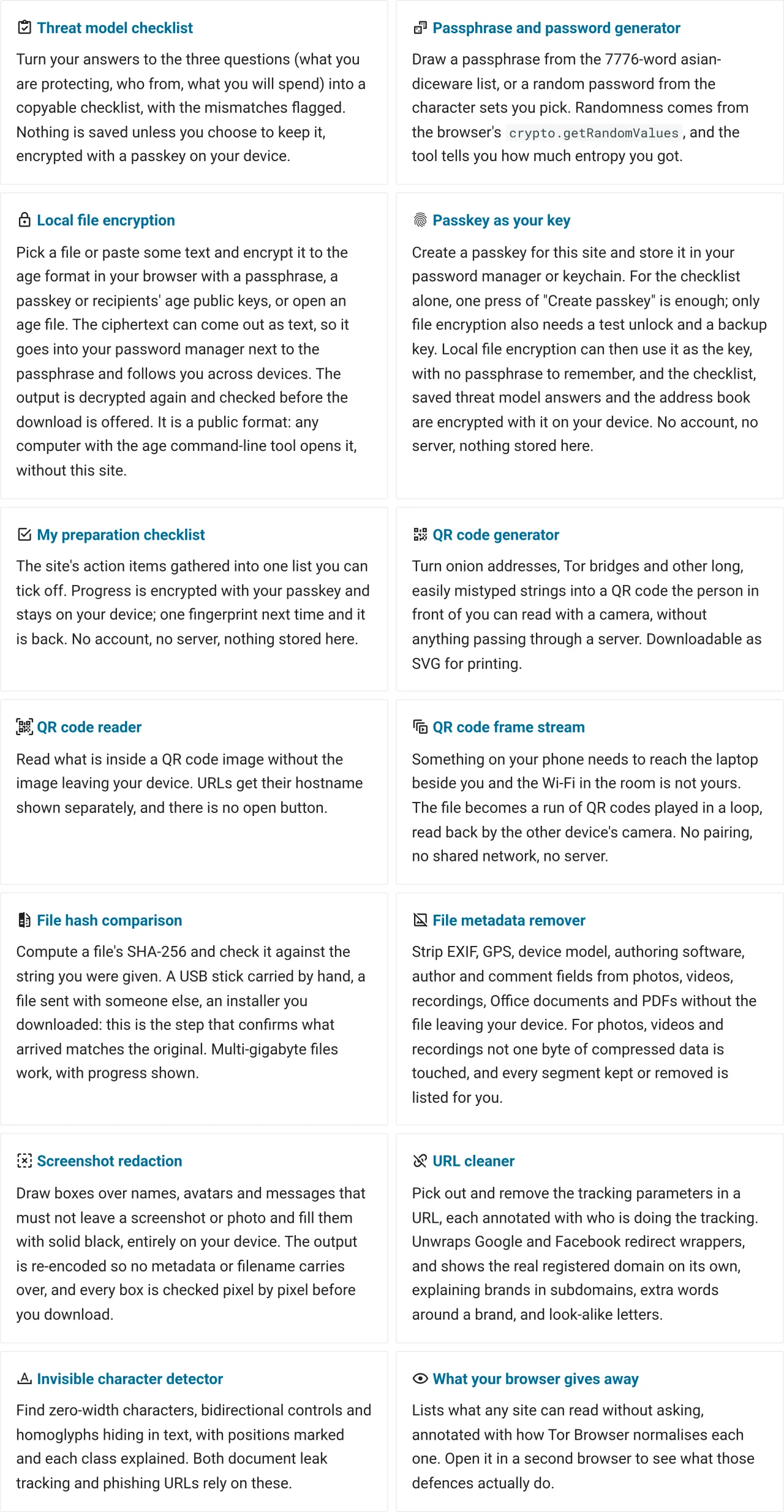
The tools index with fourteen cards, each naming a tool and what it is for

Adding the site to a home screen turns it into an app

This is something browsers have been able to do for years and almost nobody uses. Any website can be added to a phone's home screen or a computer's application list, after which it has its own icon and its own window, opens like any other app, and never touches an app store on the way.

For offline reading the difference is the entry point. When the network is gone, nobody thinks "open the browser, find the bookmark, which folder was it in"; they think "where is that icon". A minute of setup turns it into one tap.

  • Chrome, Edge or Firefox on Android: open the site, then the browser menu, and choose Install app, Install, or Add to Home screen
  • Chrome or Edge on a computer: an install icon appears at the right of the address bar, or choose Install anoni.net Docs from the menu
  • Safari on iPhone or iPad: tap Share at the bottom, scroll down, and choose Add to Home Screen

Two things catch people the first time. On iPhone and iPad the app and Safari keep separate storage, so pages stored in Safari do not come along, and the app has to store its own copy the first time it opens. On Android, long-pressing the icon opens a shortcut menu with Offline reading in it, which jumps straight to the management page.

Once installed there is no separate update to manage: when the site ships a new version the same card shown above appears inside the app, and removing it works like removing any other app.

The cost belongs up front. Installing leaves an icon on the device, which is the opposite of the no-installation-trace point in the previous section. If a border crossing may involve an inspection, skip it: opening the site in a browser reaches the same offline content, at the price of finding the bookmark yourself. Tor Browser does not offer this, for the same reason it stores nothing offline.

The technical half

Everything above is what a reader sees. What follows is how it works, and if you only came to put the site on a device, this is a fine place to stop.

If you stay, there are three things we got wrong further down: a CDN setting that kept newly published content off readers' phones for four hours, a clear button that put every page back on the device as soon as it was read, and a key that an iPhone could create but not compute with. Those three passages are about symptoms and consequences, so the jargon is safe to skip.

Offline reading is a Service Worker storing pages one at a time

A Service Worker is a piece of background code the browser provides. Once registered it intercepts every request to that site and decides whether to go to the network or answer from a cache on the device. The docs site uses it for two things: putting pages on the device, and serving them from there when there is no network.

The code lives in docs/zh-TW/sw.js, currently 1388 lines. What lands on a device is split across six stores rather than one, because the three kinds of content should disappear at different moments.

What the site stores automatically follows the site version and is dropped and re-fetched on every deploy, otherwise a reader's copy drifts further out of date with each release. What the reader ticked cannot be treated that way, because something kept deliberately should not vanish because the site shipped. What gets picked up while browsing needs an entry limit, otherwise a few rounds through image-heavy pages evict both of the other two. Three lifetimes, so three places.

Store Holds Cleared when
PRECACHE app shell and the core chapters of the current language every site release
RUNTIME_PAGES pages picked up while browsing, capped at 120 oldest evicted past the cap
RUNTIME_ASSETS images and fonts those pages reference, capped at 200 oldest evicted past the cap
LIBRARY pages the reader ticked only by the reader unticking or clearing
LIBRARY_ASSETS images and scripts those pages reference with the page they belong to
SETTINGS the two switch values reset to off by the clear button

LIBRARY_ASSETS is kept apart from LIBRARY so that the on-screen count of pages the reader picked stays accurate, and dozens of images are not counted as dozens of pages.

The two runtime caches are only written while automatic storage is on. They used to be written unconditionally, which meant that after a reader pressed Clear all offline content, every page they read went straight back onto the device. Someone presses that button because their device may be inspected, and a stated no should hold.

The switch values live in Cache Storage rather than localStorage. A Service Worker cannot read localStorage during install, and the fact that a reader once cleared their offline content has to survive into the install of the next deploy. Otherwise it all comes back the following day and the clearing meant nothing.

Tor Browser and the onion and IPFS editions register no Service Worker at all, which is deliberate. The recommended pattern is to prepare the offline copy from anoni.net in an ordinary browser and return to Tor Browser for anonymous reading.

How stale content on a device gets updated

Freshness comes from network-first. Navigation requests always go to the network, store what comes back, fall back to the cache on timeout or failure, and fall back again to that language's offline page. Reading online is therefore always current, and the only thing that goes stale is the offline copy on the device.

Choosing the timeout was the hardest part of this section, and the difficulty has nothing to do with connection speed. The browser's navigator.onLine is only trustworthy when it reports false, and the states that actually strand a reader are the ones where it reports true: aeroplane mode with Wi-Fi still on, in-flight Wi-Fi without a plan purchased, a public hotspot holding traffic at its login page. A complete copy is sitting on the device, and the reader waits out the full timeout on every page anyway.

So navigation times out after 1.2 seconds, because there is still an older copy on the device to hand over, and the reader gets complete content that is merely one round behind. On top of that, once a single navigation has timed out, anything cached is served immediately for the next minute while the network request still goes out in the background, and a success clears that state, so a reader who regains connectivity has nothing to press.

Assets run on different numbers. A navigation timeout still leaves something to serve, while an asset timeout leaves a hole in the page, so the limit is eight seconds. That limit was only added on 2026-09-04; before then there was none, a network that connects without responding left requests hanging indefinitely, and because stylesheets/extra.css is render-blocking, a hanging request meant a blank page, with nothing rendered after forty-five seconds in testing.

When a new version ships, a card floats up at the bottom of the screen reading "A newer version is available for offline reading. Updating reloads this page." Nothing is applied until the reader presses Update. Requiring that press is deliberate, because applying it reloads the current page and loses the reader's position, which is the one surprising part, so it is written on the card. Skipping it is fine, and the offline copy stays as it is until the reader decides.

Installing the site as an app introduces one extra problem. The browser's soft update is triggered by navigation, which comes up often in a tab, but a PWA sitting in the background produces no new navigation when it returns to the foreground, so the update card never appears and the reader has no update button at all. The fix is asking for a new version explicitly on foreground, throttled so that switching apps does not fire a request every time.

Pages a reader ticked do not follow releases. The offline reading page carries a separate Update what is stored button that re-fetches them page by page.

A card floating up at the bottom of the screen reading that a newer version is available for offline reading and that updating reloads the page, with Update and Later buttons below it

One more layer concerns the HTTP cache. Every request the Service Worker issues carries cache: "no-cache". The name invites a misreading: it means revalidating with the server every time, and when nothing has changed the server answers 304 and the cached copy is used, at the cost of one round trip. It does not skip the cache. A fetch without that option consults the device's HTTP cache first and answers from it while it still looks fresh, so the network request never leaves, network-first appears to have asked the network while it actually asked itself, and that stale response is then written back into the runtime cache, keeping old content on the device even longer.

That happened on 2026-08-28. A Cloudflare Cache Rule setting all HTML to max-age=14400 kept newly published content out of the PWA for four hours. Readers in a Safari tab never noticed, because entering from the address bar or pulling to refresh bypasses the HTTP cache anyway, while a cold start of the installed app and in-site link clicks do not. On top of that, an iOS home screen app has its own storage partition, so fresh content fetched in Safari never reached it, and only the PWA stayed on the old version.

The fix that day landed in two layers. The nginx server sends no-cache for pages under /docs/ and for the two index files, the Cloudflare rule was changed to respect the origin and pass that through, the Cloudflare edge still caches for 24 hours and is purged by cf_purge.py at deploy time, and the Service Worker still carries its own no-cache. The two layers are independent, because upstream settings get changed by people who have no reason to know a Service Worker depends on them, and the symptom is readers not receiving freshly published content, which is hard to notice by clicking around in a browser.

The site's passkey has no account and no server

A passkey is a key held on a device or in a password manager, opened with a fingerprint, a face or a PIN. It is normally used for logging in. The way the site uses it is entirely different: no login, no account, no server, and no way for the site to learn whether a reader ever created one. A completed preparation checklist, a set of threat model answers and a handful of frequently used contacts are all encrypted and stored on the reader's own device.

The same passkey supports two mechanisms, which differ in how they work and in where they work.

One, the data key rides inside the passkey

Creating the passkey generates a random data key on the site and places it in the credential's user.id field. Every subsequent verification returns it verbatim from wherever the passkey is held. One verification on any device holding that passkey brings the data key back into the page, which then decrypts the ciphertext stored on the device.

The preparation checklist, saved threat model answers and the recipient book in local file encryption all share one vault and one ciphertext.

The passkey page, with three steps: create a passkey, try one unlock, and generate a backup key, each with its own explanation and button

Two, PRF derives the key on the spot

This use turns the passkey into a key calculator that only answers when a finger is on the sensor, and the mechanism is the WebAuthn PRF extension. The passkey holds an extra internal secret that never leaves the authenticator, the page supplies an input on each verification, and after the reader approves, the authenticator returns a fixed 32-byte output. The same passkey with the same input always produces the same output.

Local file encryption wraps age's file key with that output. Without the passkey the key cannot be derived and the data is just ciphertext. That is a different thing from "shown only after verification", which is a gate written into a web page and can be walked around by anyone.

Why the vault deliberately takes the weaker of the two paths

The vault uses user.id rather than PRF. Apple's implementation does not pass the PRF inputs to any provider other than the iCloud Keychain, so an iPhone paired with Bitwarden can create a passkey but cannot derive a key. user.id is a core field that every provider is required to return, and we verified it on an iPhone with Bitwarden and on Chrome on a computer.

The cost is stated on the page. The data key sits in the password manager alongside the credential, so its security equals that manager's security. Whoever can unlock the password manager obtains the key, and an export file, a shared vault, or a server breach combined with a weak master password all lead to the same place. That is the same tier as a device's screen lock: enough for most people, not enough against an adversary who can reach the device and compel an unlock. The threat model checklist stops offering to save answers once that tier of adversary is selected.

Between coverage and the security ceiling we chose coverage. The design question we ask first is whether an approach works on an iPhone paired with a third-party password manager, and any design that requires memorising a passphrase gets rejected. Verifying is all the reader should have to do.

The preparation checklist before it is unlocked, explaining that this device holds no checklist yet and offering three routes: open it with a key you already have, create a new key, or enrol this device using another device's key

Limits

  • A passkey is bound to the anoni.net RP ID, browsers only allow it on that same origin, and mirrors and onion addresses cannot use it
  • Tor Browser disables WebAuthn entirely, security.webauth.webauthn is false in its default profile
  • Lose the passkey or the password manager account and the vault is gone, while files encrypted with it are left with only the backup key
  • Browsers do not let a page ask whether a given origin has a passkey, so the site does not even know whether a reader created one, and the key page is empty on every visit

Why age was chosen for encryption

Three years from now, a reader opening a backup may have nothing but a laptop with a command-line tool, and this site may not exist. That single consideration decides in favour of a public format over a custom one.

Choosing age over PGP within the public formats comes down to a short list of concrete differences:

age OpenPGP
Scope File encryption only Encryption, signatures, identity and a web of trust
Algorithms One fixed set: X25519, ChaCha20-Poly1305, scrypt, HMAC-SHA-256 Several, negotiated between parties
What a key looks like One line, 62 characters A block of thousands of characters carrying identity and expiry
Configuration None Hundreds of options in a GnuPG config
Specification length One page Hundreds of pages
Implementations Go, Rust and TypeScript, mutually compatible GnuPG mainly, with other implementations covering parts

Every row points the same way. Nothing to configure means nothing to misconfigure, a short specification can be implemented small enough to audit in a browser, and passphrase mode needs no key management at all. The 1999 usability study "Why Johnny Can't Encrypt" gave twelve people PGP 5.0 and ninety minutes to send one encrypted message, most could not finish, and one of them mailed out a private key. The 2018 EFAIL attack exploited the fact that old-format ciphertext could be altered while mail clients displayed content anyway after a failed check. Both trace back to the same root: too many options and too many places to get it wrong.

Local file encryption on the site outputs a standard age file, which any machine with the command-line tool can open without this site:

Local file encryption, with passphrase, passkey and recipient key modes, a passphrase field below them, and the encrypt-and-download button

age -d -o backup.tar backup.tar.age

Three key modes cover different situations. Passphrase mode requires no key management and its strength is exactly the strength of the passphrase. Passkey mode requires memorising nothing, at the cost of the file only opening on this origin. Recipient mode encrypts to other people, one public key per line, accepting both age1 X25519 keys and age1pq1 post-quantum hybrid keys.

After encrypting, the page decrypts its own output with the same key and compares before offering the download. The libraries doing the encryption sit on the site unmodified, not one line changed, so anyone who wants to check can compare them byte for byte against the upstream release. Modifying them would remove that comparison, leaving a reader with nothing but our word for it.

PGP stays where it belongs. The sensitive upload process on the site uses PGP, because that context needs a long-lived identity and has to work with the mail ecosystem. Mail and identity use PGP, files and backups use age.

Where this stands, and what we want to hear

The tools are still basic components. Each does one small thing well, none of them chain into each other, and there is no packaged workflow an organisation could adopt as it stands.

Whole-site offline reading is a working prototype. The core mechanism runs in production, while the prefetch boundaries, the granularity of clearing and the entry point after installation are all still moving.

Turning it into a finished product or service needs more input on what people expect from something like this:

  • Which pages you want to carry offline: the prefetch is currently split by core chapter, and real needs may differ
  • What your offline situation looks like: how much warning you get, what becomes risky to leave on a device, what has to happen first once connectivity returns
  • What a tool lacks in your situation: an unrecognised field, a format that will not open, or an explanation that does not land
  • Where passkeys get stuck: the wrong storage location at creation, a device that will not open the vault, or a page that does not explain itself

Anything you would rather not attach your name to can go to the anonymous address below.

Channels