Self-skills evaluation form
Here is a self-evaluation scale to help you quickly assess your understanding of Tor, Tails, and OONI. If you are unsure where to start, use this form as a learning guide.
How to use this form
| Level | What you can do | Who it is for |
|---|---|---|
| Awareness | Read documentation, understand concepts | Anyone interested in internet freedom |
| Practice | Install and operate tools in daily use | Journalists, civil society workers, anyone who needs to protect their communications |
| Contribute | Build infrastructure, analyze data, participate in the community | Open-source community members with basic command-line or data analysis skills |
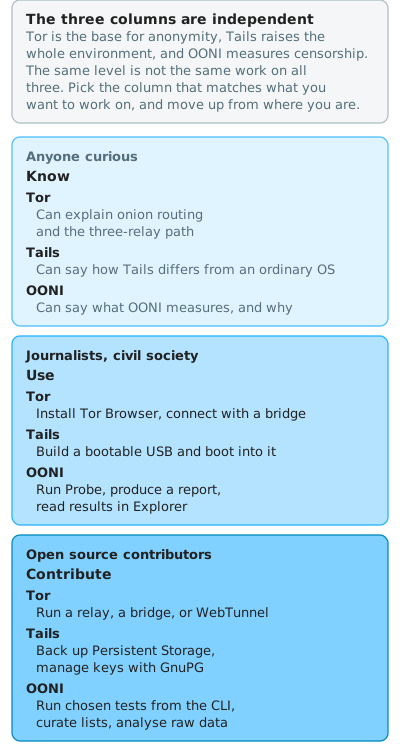
The three sections below each expand one tool across its three levels. Read across instead, and the same “contribute” level is running relays for Tor, key and persistent-storage management for Tails, and command-line testing and data analysis for OONI. The three columns are independent, and there is no need to fill in all of them.
Tor skills
Self-assessment (check the items you can already do):
- I can explain how Tor works (onion routing, a three-hop circuit).
- I can explain why internet freedom matters and what anonymous networks are for.
- I can describe the current state of internet freedom in my region.
- I can describe differences in internet freedom across regions and give specific examples.
Not there yet? Start here.
- Read "What is Tor?" (about 5–10 minutes)
- Read "What is an anonymity network?"
- Read "Anonymity, privacy, pseudonymity, and confidentiality"
- Read "Why networked freedom matters"
- Come back and check the items above to confirm your understanding.
Reference
How Tor works
Start with "What is Tor?".
Tor refers to "The Onion Router," which relays network connections randomly through three nodes. The "Tor Browser" is built by the Tor team on top of Firefox ESR and is designed for connecting to .onion websites.
More details
- Background: Tor was originally developed by the U.S. Naval Research Laboratory to protect government communications. It was later made available to the public to support freedom of speech and privacy.
- How it works: Tor encrypts your traffic and routes it through multiple relays, making it very difficult to trace.
- Privacy and security: Tor prevents network monitoring and traffic analysis, and can bypass geo-blocking and censorship.
- Limitations: Speeds are typically slower than regular connections. If a user voluntarily reveals identifying information (e.g., logs into an account), they may still be identifiable.
- Legal considerations: In some countries, using Tor may be subject to legal restrictions. Check local regulations before use.
Why internet freedom matters, and what anonymous networks are
Start with "Why networked freedom matters".
More details
- Importance of internet freedom: Internet freedom involves freedom of speech, the flow of information, and the right to privacy. A free internet allows people to exchange ideas and access information without restriction — crucial for democracy and innovation. In some countries, governments block websites, restrict social media, or monitor personal traffic.
- What is an anonymous network: An anonymous network lets users browse the internet without revealing their identity, protecting their privacy and security. These networks rely on multi-layer encryption and routing techniques such as Tor's onion routing, making user traffic difficult to trace.
- Benefits and risks: Anonymous networks protect privacy and help users bypass censorship. However, they are also used for illegal activity. Users must understand the risks that come with anonymity.
What is the current state of internet freedom in your region?
Internet freedom varies significantly by location. Here are some angles to consider:
More details
- International rankings: Freedom House publishes an annual Freedom on the Net report, assessing countries on internet access, freedom of expression, and user rights. It is a useful starting point.
- Taiwan: According to multiple international assessments, Taiwan ranks highly for internet freedom. People can freely access most international websites and openly express political views. Disinformation and online harassment remain ongoing challenges.
- Hong Kong and Malaysia as reference points: After the National Security Law took effect, internet freedom in Hong Kong declined. Malaysia has also seen content blocks during politically sensitive periods. These examples show that internet freedom can change significantly in a short time.
Internet freedom differences across regions
This is an open topic. We encourage you to search and explore the internet freedom landscape in different regions. Here are some starting points:
Keywords
- Freedom on the Net: Search for "Freedom House Internet Freedom Report" to find country rankings.
- Great Firewall: China's internet censorship mechanism.
- National Security Law: The law in Hong Kong that has affected internet freedom.
- Internet Shutdowns: Events in Myanmar, Iran, and other countries.
- Internet Surveillance Laws: Surveillance measures and their impact in various countries.
Notable events
- 2021 Myanmar military coup: Its impact on internet freedom in the country.
- Singapore's POFMA: The Protection from Online Falsehoods and Manipulation Act and its effects.
- Thai protests and royal criticism: Government suppression of online speech.
- Vietnam's content blocking: Specific examples of controlled internet use.
Self-assessment (check the items you can already do):
- I can download and install the Tor Browser.
- I can explain when to use Bridge, Snowflake, or WebTunnel.
- I can explain whether and when to pair Tor with a VPN, and the differences between the two approaches.
- I can connect to Tor both directly and via a bridge, and have used it for at least one week.
- I can switch the current Tor circuit (New Tor Circuit).
- I can access
.onionwebsites.
Not there yet? Start here.
- Go to the Tor Project website and download the Tor Browser.
- After installing, use the Tor Browser for everyday browsing for at least one week to get familiar with its interface.
- Try accessing the project's
.onionwebsite to verify that bridge connections also work.
Reference
How to connect with Tor Browser
The Tor Browser is built on Firefox ESR and routes all browsing through the Tor network, including .onion sites. Brave can also reach .onion sites through its private window with Tor. Mullvad Browser shares Tor Browser's anti-fingerprinting work but has no Tor network layer, so it cannot reach .onion sites on its own.
Tor Browser is similar to a regular browser but focuses on privacy and blocks ad tracking. Traffic to regular websites passes through three random Tor relays. Traffic to .onion sites enters the onion network after the third relay.
More details
- Anonymous browsing: Traffic is routed through randomly selected relay servers with multiple layers of encryption, making the source very hard to trace.
- Bypassing censorship: Traffic is routed through relays in different countries, making it difficult for monitoring or filtering systems to identify and block connections.
- Temporary-use design: When you close Tor Browser, all browsing history, cookies, and login data are automatically cleared.
- Open source: Tor's source code is publicly available, allowing developers and security experts to audit and fix potential issues.
Tor bridge types: Bridge, Snowflake, WebTunnel
Bridge servers exist to help users in censored or blocked environments connect to Tor. Here are the main bridge types:
- Bridge: The most basic type. A bridge is a secret entry point not listed in the public Tor network, making it harder to block. Users can manually obtain bridges to connect. (See how to get a Tor Bridge)
- Snowflake: Uses the WebRTC protocol to let volunteers use their browsers as temporary Tor entry points. Because it is dynamic and decentralized, it is harder to block. (See how to install Snowflake)
- WebTunnel: Uses an HTTPS server as the entry point. Its traffic is nearly indistinguishable from regular HTTPS traffic, making it effective against sophisticated blocking. (See how to set up WebTunnel)
When to use each bridge type
- Bridge: Use when your network has basic Tor blocks (e.g., schools, workplaces). Sufficient for most IP-based blocks.
- Snowflake: Use in environments with strong censorship that employs Deep Packet Inspection (DPI), such as China or Iran.
- WebTunnel: Use when all other bridge types have failed and you face extreme blocking. Its HTTPS disguise hides Tor traffic among normal web traffic.
Can I use Tor with a VPN?
Using a VPN with Tor is common. There are two main approaches:
- Tor-over-VPN: Connect to a VPN first, then connect to Tor. This is the more commonly used approach. Your real IP is hidden behind the VPN server, so your ISP cannot see you are using Tor. The VPN can also help bypass blocks on Tor entry nodes.
- VPN-over-Tor: Connect to Tor first, then use a VPN through Tor. This is rare and requires VPN provider support. It may not provide additional IP protection.
Install Tor Browser and use it for at least one week
- Go to the Tor Project website and download the Tor Browser for your operating system.
- Install and launch Tor Browser.
- Use Tor Browser for daily browsing for at least one week to get comfortable with its interface. Note the privacy and security features, and any inconveniences you encounter.
Connect via direct connection and bridge
- When you launch Tor Browser, it will start establishing a connection.
- Entering a URL connects you directly through Tor. This works best in regions that do not block Tor.
- Click the first icon on the left side of the address bar (Tor Circuit, similar to ) to view your current relay path.
- If Tor is blocked in your network, go to Settings, Connection, Bridges. Choose a built-in bridge type, or enter bridge information you obtained elsewhere.
Switch the current Tor circuit
- Click the Tor Circuit icon in the address bar to view your current connection path.
- Click "New Tor circuit for this site" to rebuild the connection path. This is useful when the exit node is blocked by a website and you want to try a different country.
Connect to .onion websites
- Visit the project website and look for the purple "
.onionavailable" button in the address bar. Clicking it redirects you to the.oniondomain. - DuckDuckGo also provides a
.onionservice: https://duckduckgogg42xjoc72x3sjasowoarfbgcmvfimaftt6twagswzczad.onion/
Self-assessment (check the items you can already do):
- I can clearly distinguish between Tor (The Onion Router), the Onion network, and Tor Browser.
- I can set up a Tor bridge using the Snowflake browser extension.
- I can run the Tor service and route other applications through it using SOCKS v5.
- I can look up relay status by region on metrics.torproject.org.
- I can set up and maintain a Tor relay.
- I can set up a Tor Bridge or WebTunnel relay.
- I can host a
.onionwebsite.
Not there yet? Start here.
- Complete all items in the Practice level first.
- Read "How to set up a Tor relay" for the full installation and configuration process.
- See "Tor relay watcher" to learn how to observe relay status.
- See "Tor Snowflake" to learn how to run a Snowflake bridge via browser extension or standalone program.
Reference
Tor vs. Onion network vs. Tor Browser
- Tor (The Onion Router): The underlying anonymous routing technology. Traffic passes through multiple relays with layers of encryption, making the source very hard to trace.
- Onion network: The network of onion services accessible only via Tor, identified by
.onionaddresses. - Tor Browser: A Firefox ESR-based browser with Tor built in, making it easy for regular users to access Tor and
.onionsites.
Set up a Tor bridge using the Snowflake browser extension
Snowflake lets you use your browser as a temporary Tor bridge, helping users in censored regions connect to Tor.
- Install the Snowflake extension in Chrome or Firefox.
- It runs automatically after installation. The extension icon shows the number of connections currently being relayed.
- See the "Tor Snowflake" page for detailed instructions.
Run the Tor service and connect via SOCKS v5
Beyond Tor Browser, you can install and run the Tor service directly on your system to let other applications use Tor via SOCKS v5.
- Install on Debian/Ubuntu:
apt install tor - The default SOCKS v5 port is
9050. - In any application that supports SOCKS v5 proxy, set the proxy server to
127.0.0.1:9050. - Verify the connection with:
curl --socks5-hostname 127.0.0.1:9050 https://check.torproject.org/api/ip
Look up relay status on metrics.torproject.org
Tor Metrics provides statistics on the Tor network, including relay counts, bandwidth usage, and geographic distribution.
- Go to Relay Search to search relays by country, nickname, or fingerprint.
- For Taiwan (TW), select Country: TW in Advanced options to see a list of active relays.
- The "Tor relay watcher" page also provides visualized monitoring data.
Set up and maintain a Tor relay
Setting up a Tor relay requires basic Linux skills and a server with a static IP and stable bandwidth.
See "How to set up a Tor relay" for the full guide, covering:
- Middle relay installation and configuration (
/etc/tor/torrc) - Running multiple instances with
tor-instance-create - Monitoring with nyx, and post-installation best practices
For a bridge that survives heavy censorship, see "How to set up a Tor WebTunnel bridge".
Host a .onion website
A .onion website is a onion service accessible only through Tor. To set one up, configure the Tor service on your server and specify the local listening port for the onion service.
See the official guide: Tor Project | Set up Your Onion Service.
Tails skills
Self-assessment (check the items you can already do):
- I can explain what Tails is and how it differs from a regular operating system.
- I can describe the main use cases for Tails and its key limitations.
- I can explain why internet freedom matters and what anonymous networks are. (Same as Tor Awareness)
- I can describe the current state of internet freedom in my region. (Same as Tor Awareness)
Not there yet? Start here.
- Read "What is Tails?" (about 5–10 minutes), then tails.net for the upstream documentation.
- The background knowledge on internet freedom and anonymous networks is the same as the Tor Awareness level. Complete the Tor skills section first, then come back.
- Come back and check the items above to confirm your understanding.
Reference
What is Tails and how does it work?
Tails is a portable operating system built with security at its core. It boots from a USB drive, runs entirely in RAM, and leaves no trace on the computer you use it on. All outgoing network connections are routed through Tor by default.
See tails.net for the full introduction.
Why internet freedom matters, and what anonymous networks are
This background knowledge is the same as the Tor Awareness level. See the Tor skills section and "Why networked freedom matters".
What is the current state of internet freedom in your region?
This background knowledge is the same as the Tor Awareness level. See the Tor skills section.
Self-assessment (check the items you can already do):
- I can create a Tails bootable USB drive and boot into Tails.
- I know which Mac models cannot run Tails and why.
- I understand the main use cases and limitations of Tails.
- I can create a Persistent Storage volume.
- I can configure a Bridge to adjust Tails's Tor connection.
- I can share files securely with OnionShare, and have used Tails for at least one week.
Not there yet? Start here.
- Go to tails.net and download the Tails image.
- Prepare a USB drive with at least 8 GB and use Balena Etcher to create the bootable drive.
- Follow the official Tails installation guide to complete the setup and boot from USB.
- Use Tails for daily tasks for at least one week to get familiar with its features.
Reference
How to create a Tails bootable USB drive
- Download Tails: Go to tails.net and download the Tails image.
- Prepare tools: You need a USB drive with at least 8 GB and a tool such as Balena Etcher or Rufus.
- Create the drive: Follow the official installation guide for your operating system.
How to boot from USB
- Enter BIOS/UEFI settings: Restart the computer and press the appropriate key (e.g., F2, F12, Delete) to enter BIOS or UEFI settings.
- Adjust boot order: Set the USB drive as the primary boot device. Save and restart — the system will boot from USB automatically.
Which Mac models cannot run Tails?
- Not supported at all: Apple Silicon Macs (M-series chips). Tails only runs on x86-64, so this is an architecture limitation and no boot setting will change it.
- May need configuration: Intel Macs with an Apple T2 chip, where Startup Security Utility blocks booting from external media until you relax the secure boot setting. See the Tails system requirements.
Tails use cases and limitations
- Use cases: Tails is designed for people who need strong privacy protection, such as journalists, human rights workers, or anyone who wants to browse anonymously. It runs in RAM and leaves no data on the computer after shutdown.
- Limitations:
- Hardware compatibility: Driver support for some newer Wi-Fi cards may be limited.
- Learning curve: Tails is based on Linux (Debian) with the GNOME desktop, which may take some getting used to if you are not familiar with Linux.
- Persistent storage: While you can create an encrypted Persistent Storage for some data, Tails is designed by default to leave no trace.
- Frequent updates: Tails updates frequently for security. Keeping it up to date is essential.
Create Persistent Storage
- After booting into Tails, open Apps ▸ Tails ▸ Persistent Storage.
- Follow the instructions to set up the encrypted Persistent Storage. This area lets you save configuration files, email, and personal data securely.
- Once set up, you can choose whether to unlock Persistent Storage each time you start Tails.
Configure a Bridge for Tails's Tor connection
- After logging into Tails, you will see a screen for configuring the Tor connection.
- If Tor is blocked in your region, choose the Bridge option.
- Select a built-in bridge type, or manually enter bridge information you have obtained elsewhere.
Share files with OnionShare
- OnionShare is a tool for securely sharing files over the Tor network, covered in full in OnionShare. It comes pre-installed in Tails.
- Open OnionShare from the Applications menu.
- Drag and drop files into OnionShare, or select them manually.
- After starting the share, OnionShare generates a
.onionURL. Share it with trusted people so they can download the files using Tor Browser.
Self-assessment (check the items you can already do):
- I can set up Gmail in Thunderbird for sending and receiving email (IMAP).
- I can update Tails to the latest version.
- I understand how MAC Address Anonymization works in Tails.
- I can back up my Persistent Storage to another USB drive.
- I can manage passwords with GNOME Secrets.
- I can create an OpenPGP key pair and encrypt files using GnuPG and Kleopatra.
- I can send an encrypted email using Thunderbird.
Not there yet? Start here.
- Complete all items in the Practice level first.
- Open Thunderbird in Tails and follow the setup wizard to configure your IMAP account.
- Refer to the official Tails documentation for guides on GNOME Secrets and GnuPG.
Reference
Set up Gmail in Thunderbird (IMAP)
- Open Thunderbird in Tails.
- Follow the setup wizard and enter your Gmail address. Choose IMAP.
- Thunderbird signs in to Gmail with Google's OAuth2 flow, so a browser window opens for you to authorise it. Google does not recommend App Passwords and they are unnecessary for current clients, so only fall back to one if your client cannot do OAuth2.
- Once configured, your email will be transmitted through the Tor network.
Update Tails to the latest version
- Tails has a built-in update detection feature. If a new version is available, the system will notify you on the desktop after startup.
- Follow the prompts to update. A manual upgrade needs a second USB drive, since it clones the old version onto the new one. Automatic upgrades do not.
- See the official Tails upgrade guide for detailed steps.
MAC Address Anonymization
- A MAC address is a unique identifier for a network card, visible to other devices on the same local network.
- Tails enables MAC Address Anonymization by default — it generates a random MAC address at startup so your device cannot be identified in the same Wi-Fi environment.
- If your network requires a fixed MAC address to connect (e.g., corporate networks), you can temporarily disable this feature from the Tails startup menu.
Back up Persistent Storage
- You can clone your Persistent Storage to another Tails USB drive as a backup.
- Go to Applications, Tails, Clone Tails and follow the steps. You can choose whether to include the Persistent Storage in the clone.
- Regular backups are recommended in case your USB drive is damaged or lost.
Manage passwords with GNOME Secrets
- GNOME Secrets replaces KeePassXC as the built-in password manager starting from Tails 7.6, integrating more tightly with the GNOME desktop environment.
- Launch it, create a new password database, and set a master password.
- Store all your account passwords in the database. You only need to remember the master password.
- GNOME Secrets uses the same database format as KeePassXC, so existing KeePassXC password databases can be opened directly in GNOME Secrets.
- Save the database file in Persistent Storage so it is available the next time you use Tails.
Create an OpenPGP key pair and encrypt files
- Open Kleopatra in Tails (Applications, Accessories).
- Create a new OpenPGP key pair (a public key and a private key).
- Share your public key with others so they can encrypt files or emails they send to you.
- Store your private key in Persistent Storage.
- Use Kleopatra to encrypt or decrypt files, and Thunderbird to send encrypted emails.
Send an encrypted email with Thunderbird
- After creating a GnuPG key pair and setting up Thunderbird, you can try sending an encrypted email to
[email protected]. - To get the public key for
[email protected], see the "Stay Informed" page. - Compose the email in Thunderbird, choose to encrypt it, and send. The recipient will decrypt it using their private key.
OONI skills
Self-assessment (check the items you can already do):
- I can explain what OONI is and what it is for.
- I can distinguish between network surveillance and network censorship.
- I can explain how OONI Probe testing works.
- I can describe differences in network surveillance and censorship across regions.
Not there yet? Start here.
- Read "What is OONI?" (about 5–10 minutes)
- Read "Why networked freedom matters"
- Come back and check the items above to confirm your understanding.
Reference
What is OONI?
Start with "What is OONI?".
Network surveillance vs. network censorship
- Network surveillance: The monitoring and recording of users' online activities — such as emails, search history, website visits, and calls — by governments, organizations, or individuals. Surveillance often involves deep packet inspection (DPI) to extract specific traffic information.
- Network censorship: Restricting or controlling access to certain information on the internet, including blocking websites, filtering content, or banning keyword searches. Censorship is typically implemented by governments but may also be enforced by companies or other institutions.
How OONI testing works
- OONI provides the free, open-source tool OONI Probe. Users can run tests on their own network to detect censorship.
- OONI Probe periodically sends requests to multiple websites and services, checking whether the sites on OONI Website Testing List are accessible.
- Test results are uploaded anonymously to OONI's servers and published on OONI Explorer for researchers and the public.
Differences in surveillance and censorship across regions
- Taiwan: The internet environment is relatively open. The government has not implemented large-scale censorship or surveillance, and privacy rights are generally protected.
- China: Enforces strict internet blocks and censorship under the "Great Firewall," restricting access to many foreign websites and services.
- North Korea: Imposes extreme restrictions on internet access, allowing only a small selection of content.
- Russia and Iran: Carry out varying degrees of network surveillance and website blocking.
- See "Why networked freedom matters" for more context.
Self-assessment (check the items you can already do):
- I can install and use OONI Probe to generate a measurement report.
- I can explain why using OONI Probe over a VPN is not recommended.
- I understand the risks of using OONI Probe in regions with strict censorship.
- I can explain how Autonomous System Numbers (ASNs) work.
- I can use OONI Explorer to review recent measurement data for a specific country.
- I can use OONI Explorer to compare measurement data across countries.
- I can create an OONI Run link and find the corresponding online report.
Not there yet? Start here.
- Go to ooni.org/install/ and install OONI Probe.
- Run a full website test and view the results.
- Go to OONI Explorer to see where your test results appear.
Reference
Install and use OONI Probe
- Install: Download OONI Probe from ooni.org/install/.
- Use:
- Choose a test type: website blocking, instant messaging app connectivity, or middlebox interference.
- Start the test. OONI Probe runs automatically and generates results.
- Results are uploaded to OONI's servers. You can also view detailed reports on OONI Explorer.
Why not use OONI Probe over a VPN?
- A VPN changes your traffic path and IP address, which may cause OONI Probe to measure the VPN's network environment rather than your actual local network.
- OONI Probe is meant to test your local network for censorship. Run it without a VPN to get accurate results.
Risks of using OONI Probe
- In regions with strict censorship, running OONI Probe may attract the attention of network administrators. Understand your local network policies and assess the risks before running tests.
- OONI Probe accesses various websites and services during testing, which may trigger network monitoring logs.
How ASNs work
- An ASN (Autonomous System Number) is the unique identifier for an Autonomous System (AS).
- An AS is a group of IP address blocks managed by one or more ISPs or large organizations. Each AS uses its ASN to exchange routing information with other ASes on the internet.
- See "ASN observation data analysis" for an introduction.
Review recent measurement data on OONI Explorer
- Go to OONI Explorer.
- Select a country in the country field.
- Use the date range picker to select the time period you want to view.
- Browse results by test type: website blocking, instant messaging connectivity, and more.
- Download or record relevant data and events for further analysis.
Compare measurement data across countries on OONI Explorer
- In OONI Explorer, set the Rows axis to "Country" and use the Filters to select the countries you want to compare. (Reference configuration)
- Review differences in test results across countries, including website blocking and middlebox detection.
- Export data as CSV for further analysis.
Review current internet blocking reports
- The OONI Explorer homepage features the latest reports and trends on global censorship and blocking.
- Browse the Search page or search for specific services and websites to check their connectivity.
- Also explore the Social Media section for test results by category.
Create an OONI Run link and find the report
- Go to OONI Run and enter your email to get a login link.
- Log in and fill in the required fields.
- Add URLs to test under "Add URL+" and click "Create Link".
- Share the link or click it to open OONI Probe and start testing. (Example test)
- The number in the URL (e.g.,
10182inhttps://run.ooni.org/v2/10182) is the OONI Run Link ID. Enter it in OONI Explorer to find the results. (Example results)
Self-assessment (check the items you can already do):
- I can run OONI Probe from the command line and execute specific tests.
- I understand how test lists are curated and categorized.
- I can review URLs in an existing test list, and flag items that need to be updated or removed.
- I can submit a Pull Request to update a Citizen Lab test list.
- I can process and analyze raw OONI measurement data.
Not there yet? Start here.
- Complete all items in the Practice level first.
- Read "OONI Website Testing List" to understand how lists are curated and maintained.
- Read "ASN observation data analysis" to learn how raw data is analyzed.
- Browse the citizenlab/test-lists repository on GitHub to explore the list format for different countries.
Reference
Run OONI Probe from the command line
OONI Probe is available as a CLI tool in addition to the GUI app:
- Go to the OONI Probe CLI page and download the version for your system.
- After installing, use
ooniprobe runto run all tests, orooniprobe run websitesto test websites only. - The CLI is suitable for running on servers or in scheduled environments to continuously monitor network conditions in specific regions.
Test lists, and how to help maintain them
OONI Probe measures against the test-lists project maintained by Citizen Lab: a global list plus one per country, sorted into four categories.
OONI Website Testing List covers how the lists work, what shape a country list is typically in, and the review-and-pull-request workflow for helping maintain one. It needs no programming.
Process and analyze raw OONI measurement data
OONI publishes raw measurement data on AWS S3 (ooni-data-eu-fra, eu-central-1), which you can use to analyse ASN coverage, track a site's blocking status over time, or compare across regions.
ASN observation data retrieval and analysis has the retrieval scripts and commands, and ASN observation data analysis explains what the resulting numbers mean.
After the assessment
This form is for your own reference. Nobody collects the results, so just pick your next step from where you landed:
- Awareness level: subscribe to the newsletter to follow what the community is doing, or work through Guides to fill in the gaps.
- Hands-on level: follow the "Not there yet? Start here." steps under each tool and actually install and use it. Bring problems to Matrix.
- Contribution level: pick a direction from How to contribute, then say in the matching Matrix room what your level is and what you would like to work on. Someone will help you get started. See Community for how to join.
You do not need to be at the same level in all three tools. Being at contribution level for OONI and awareness level for Tails is a perfectly normal place to be.